What you’ll accomplish: Prepare a parameterized notebook, execute it through an API request, and inspect the resulting job.
Applications used: JupyterLab, Headless Execution
Estimated time: 20–30 minutes
Before you start: You need a working notebook, access to the Workspace shared folder, and a Workspace where Headless Execution is enabled. Basic familiarity with API requests or curl is helpful.
Learn how to leverage headless notebooks to run your Jupyter notebooks with dynamic parameters. This guide walks you through starting a server, executing a notebook, and managing job outputs for automated analysis.
1. Navigate to your EoxHub Workspace - this tutorial is shown on a specific Workspace but can be reproduced anywhere this application is enabled.
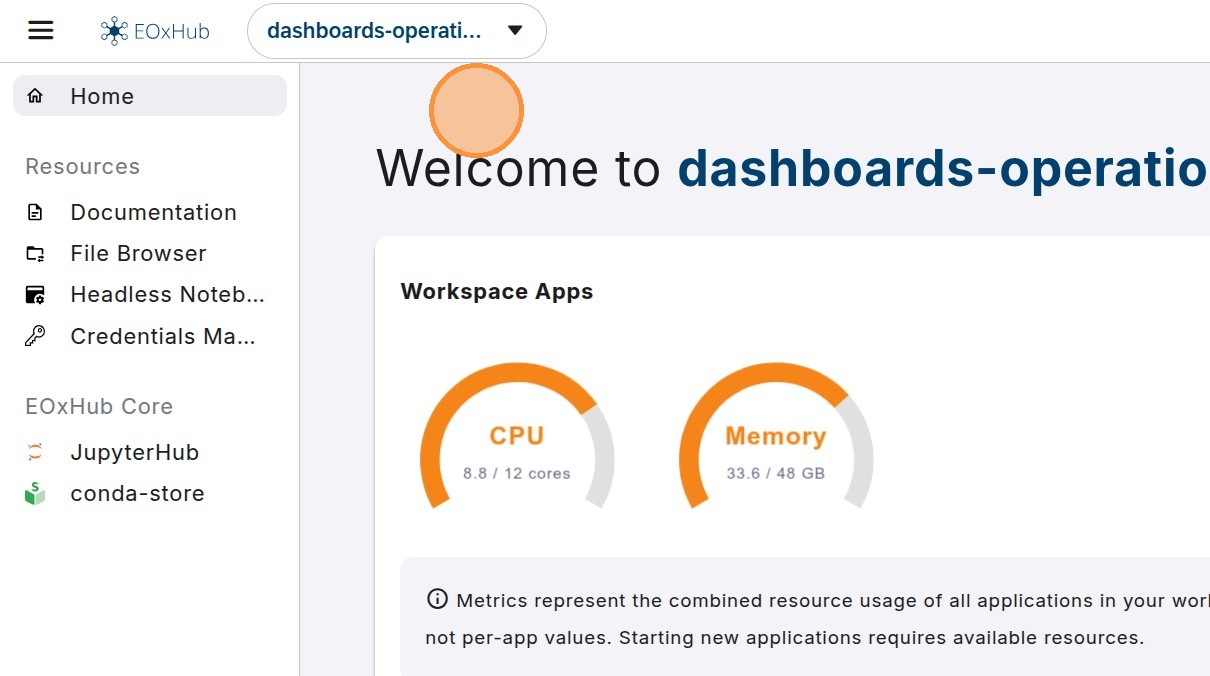
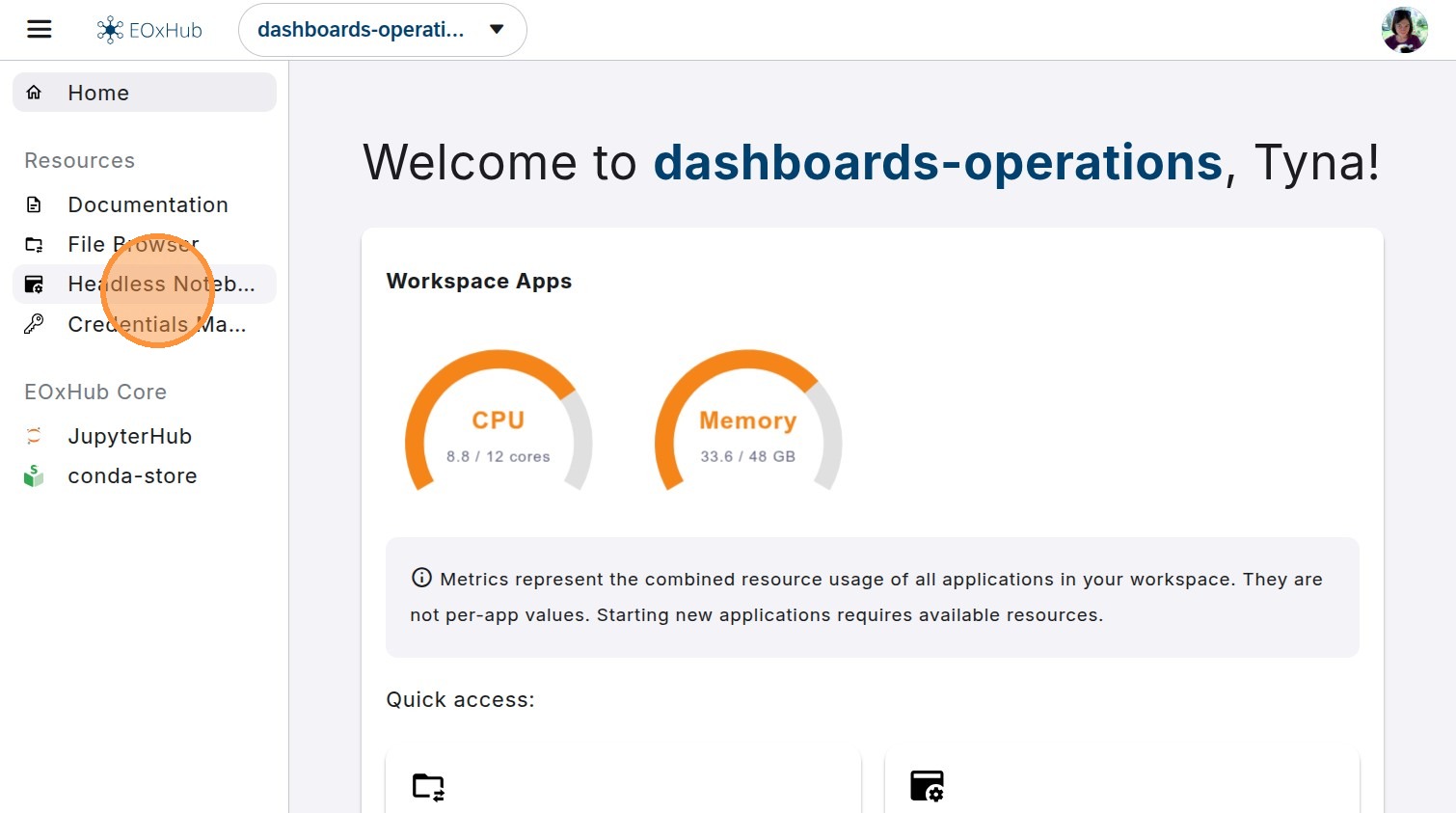
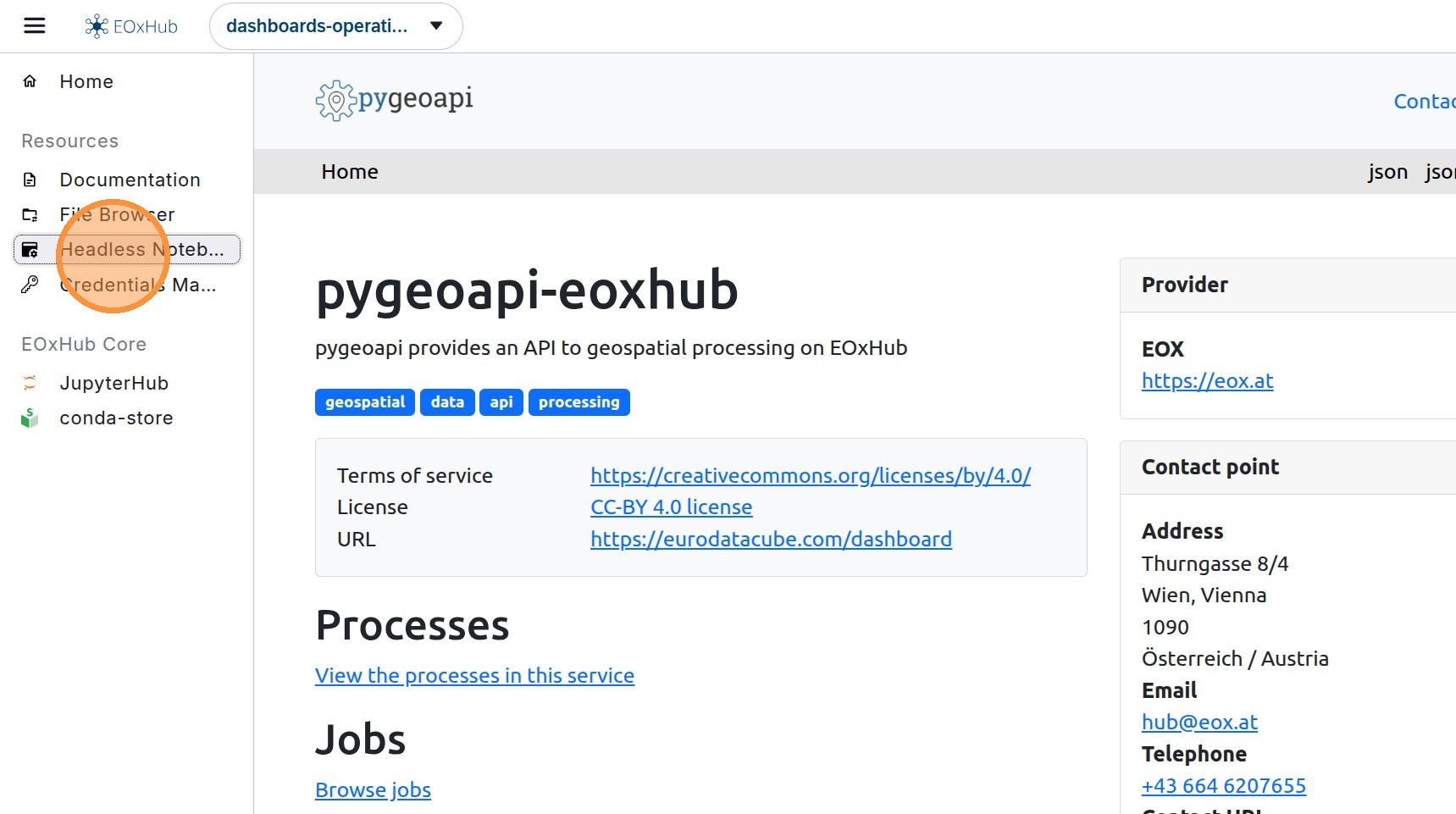
2. Click “Headless Notebook” to verify that the application is enabled. If this icon is missing, please contact our support team or your Workspace administrator to have it enabled.
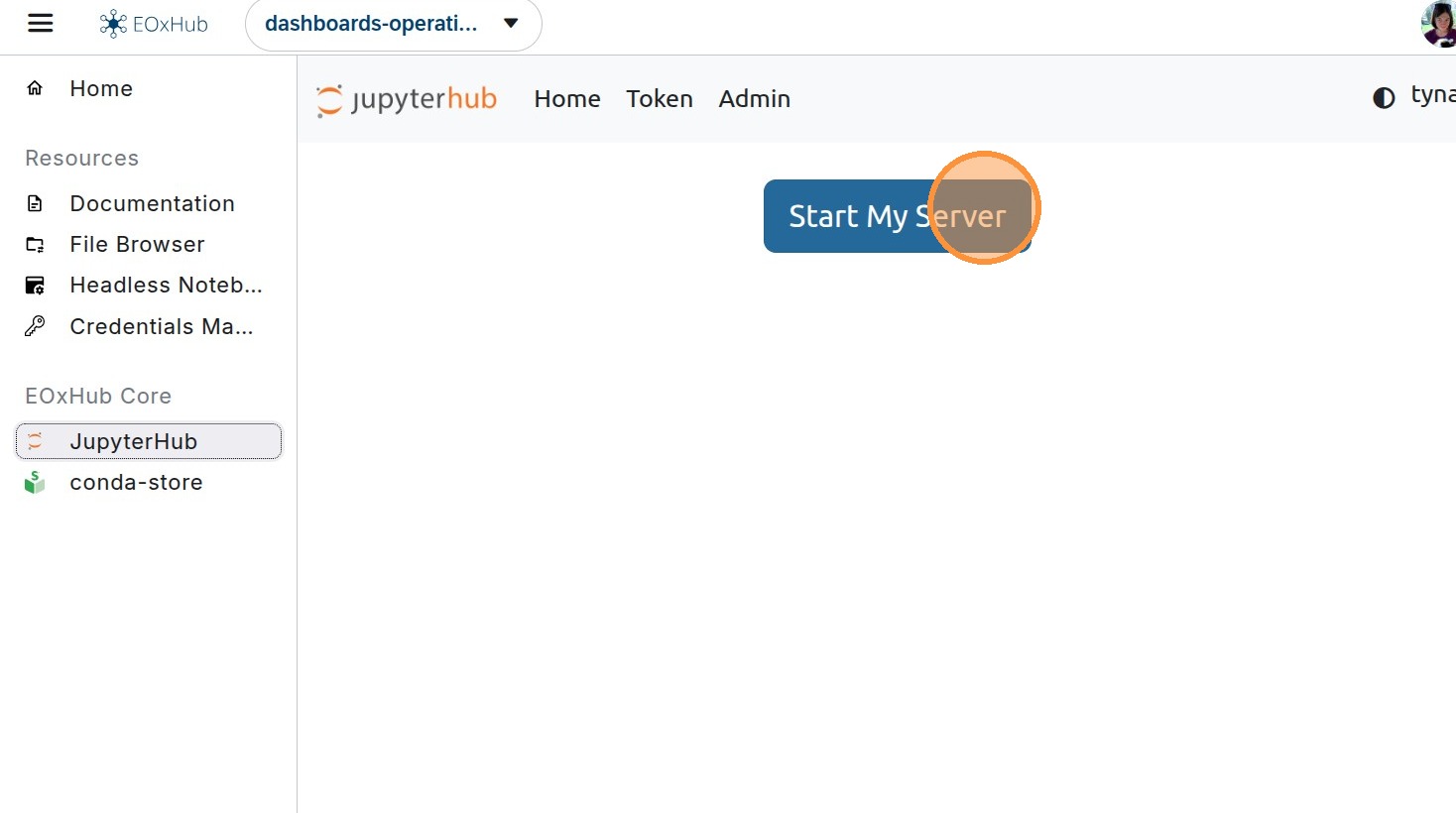
3. Now let’s start JupyterLab to prepare your notebook.
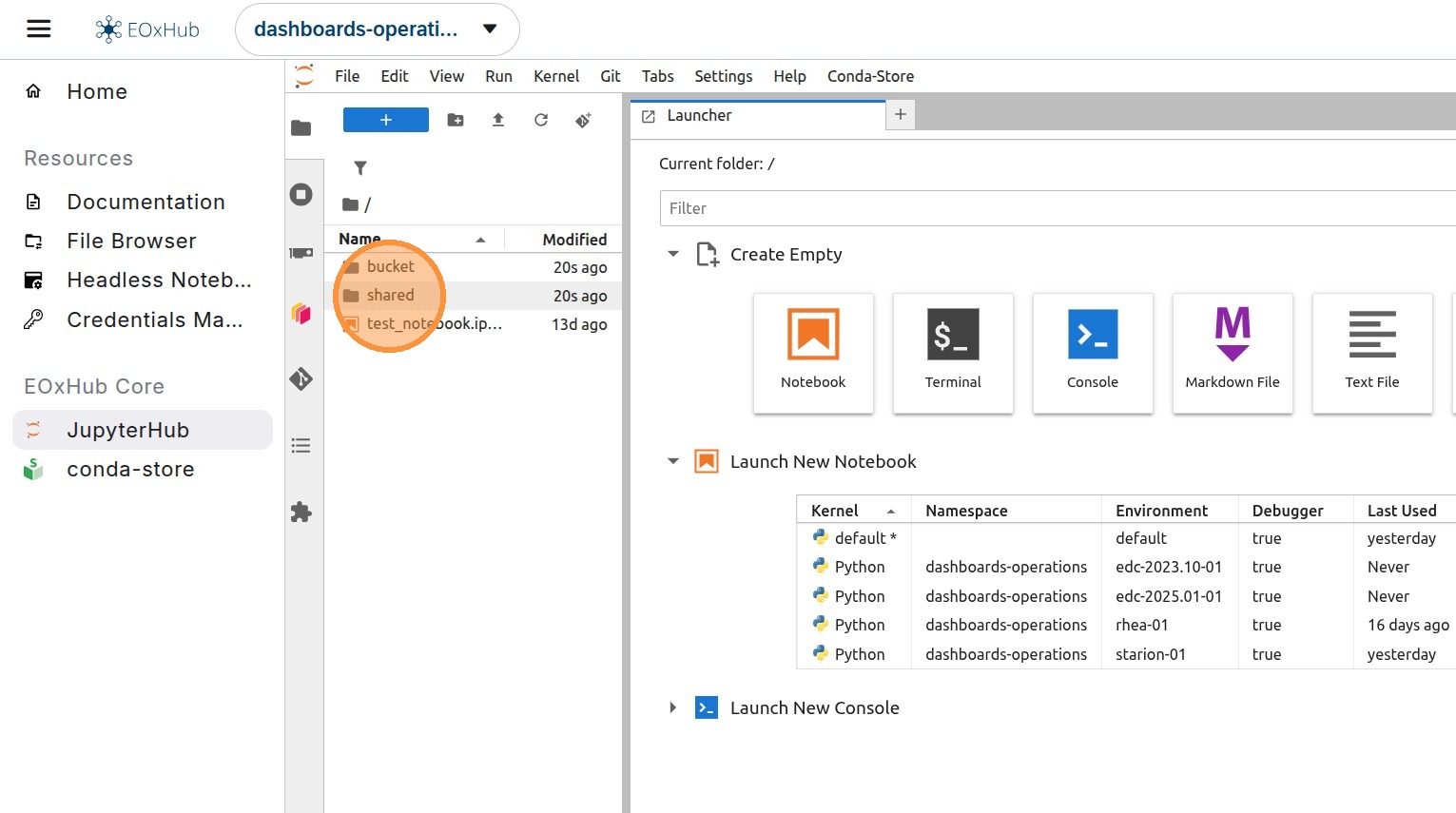
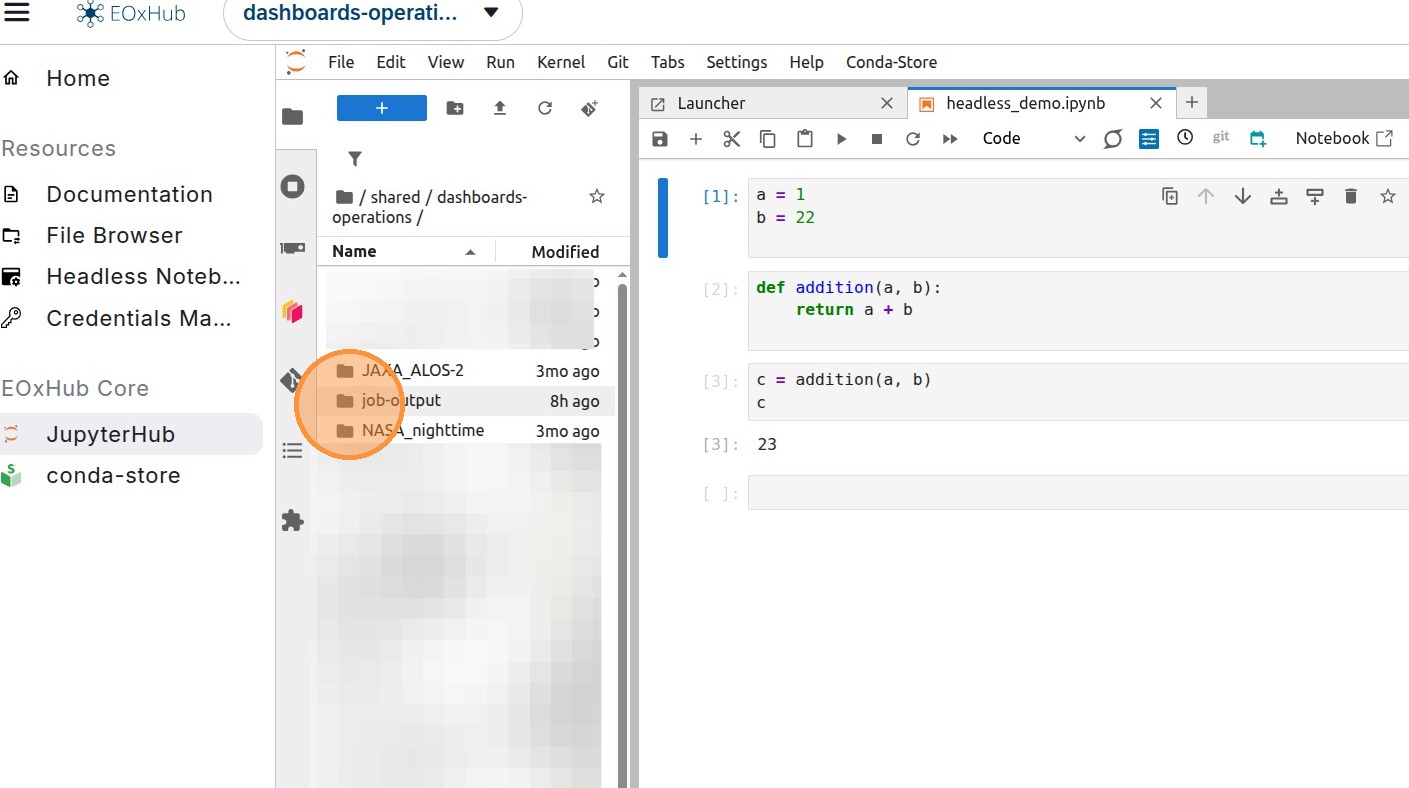
4. For the pygeoapi worker to find the correct notebook, it needs to be created in a specific structure within a shared folder. Inside the shared folder, there is another folder named the same as the Workspace - this is the correct location.
The shared folder is shared among all users in the workspace and also with pygeoapi.
Inside this folder, the structure can be arbitrary - separated into many other folders or just single notebooks.
5. Open a notebook and write your code into the cells.
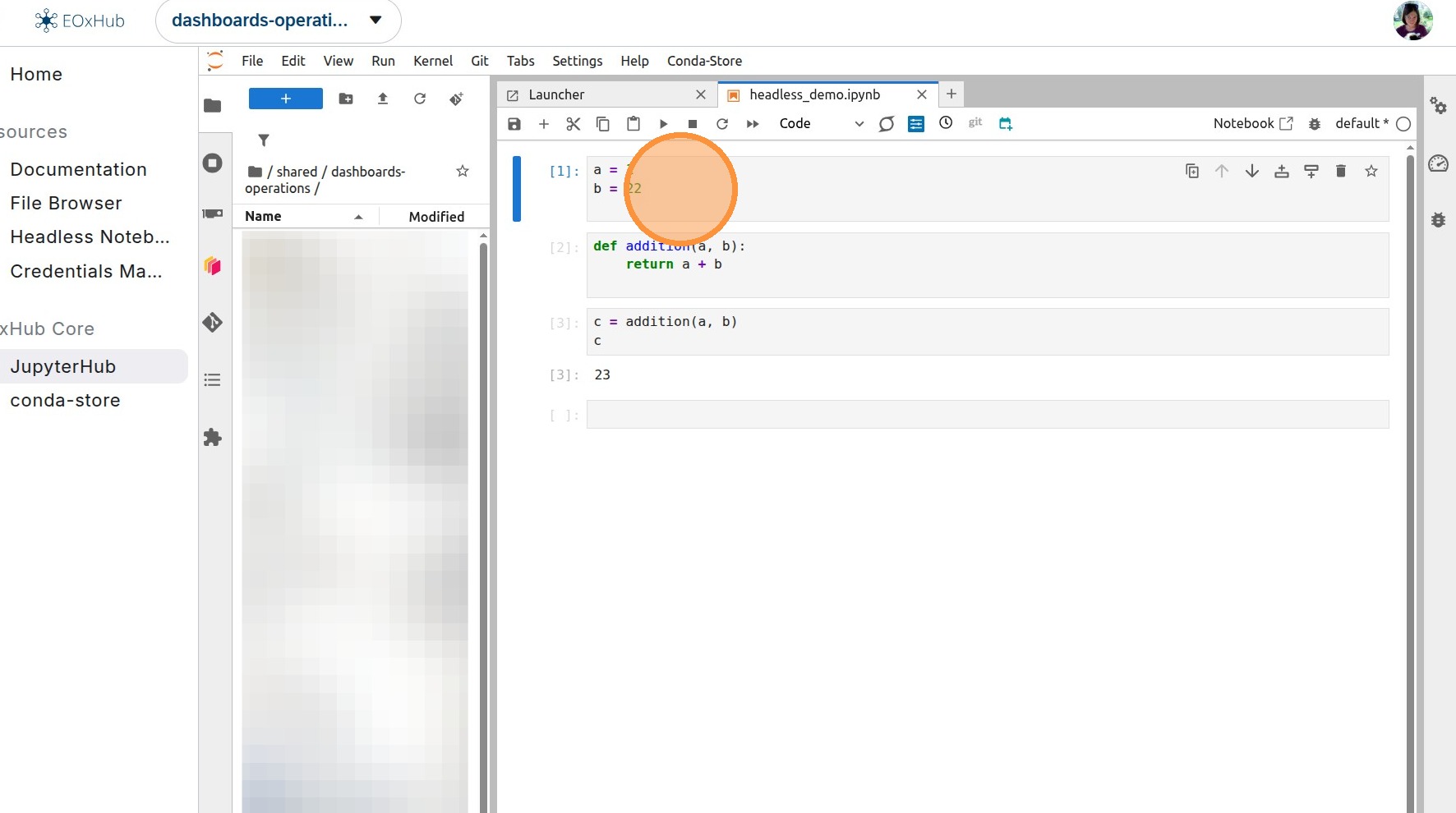
6. The cell that should take input parameters from the headless call needs to be adjusted, and the parameters (variables) with default values need to be explicitly assigned.
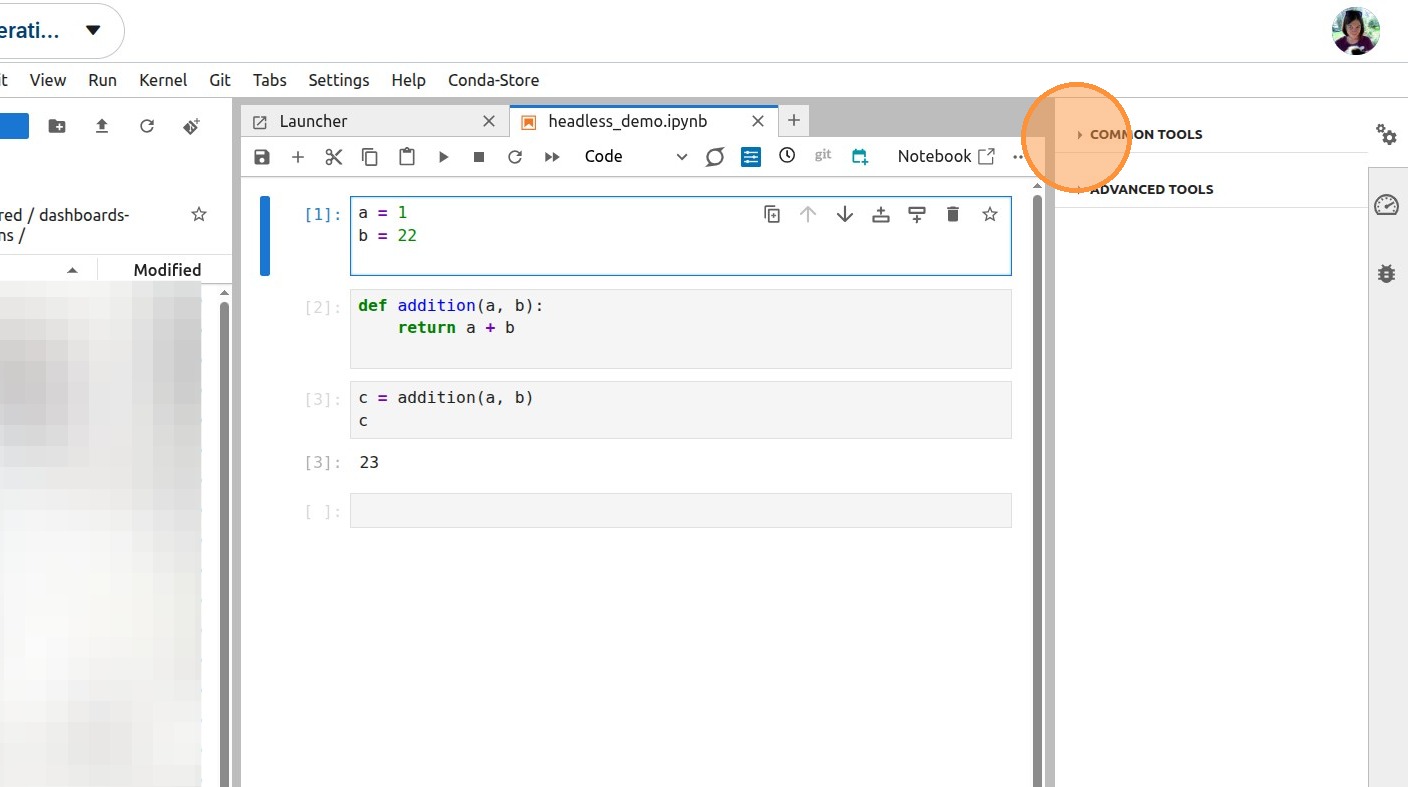
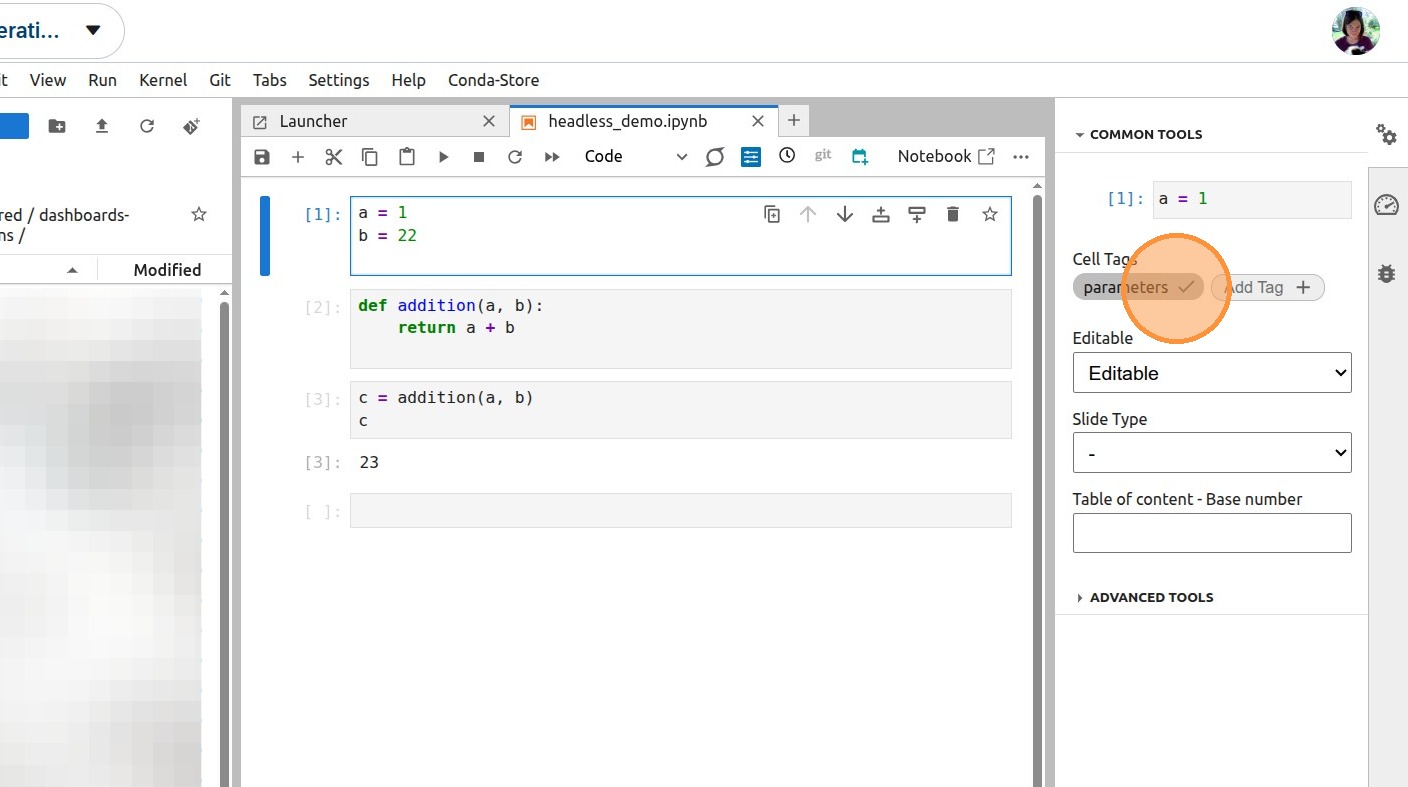
7. In addition to explicitly setting default parameters, the cells containing them need to be tagged “parameters”. Save the notebook once you are done.
8. To trigger the headless execution, you need to send a request to a specific endpoint.
Inside the call you can specify:\
a specific kernel (if not specified, it will automatically use the same kernel which was saved with the notebook), the input should be the full kernel name\
parameters to be overwritten by the execution\
full path to the notebook
Optionally, it is possible to include resource limits, like CPU or RAM.
This request can be sent via any application the user prefers, not just directly withcurl.
Here is an example call using curl:
curl --include \
--request POST ‘https://pygeoapi -eoxhub.{your-workspace-url}/processes/execute-notebook/jobs’
--header ‘Content-Type: application/json’
--data-raw ‘{
“inputs”:{
“notebook”:“/home/jovyan/.shared/{your-workspace-url}/{your-notebook-name}.ipynb”,
“kernel”: “{full-kernel-name}”,
“parameters_json”:{
“a”: “1”,
“b”: “2”
}
}
}’
9. Executed notebooks and their results can be found in the sub-folder job-output, in the same location as the originating notebooks.
All cells will be executed, so opening the notebook can be used for debugging purposes.
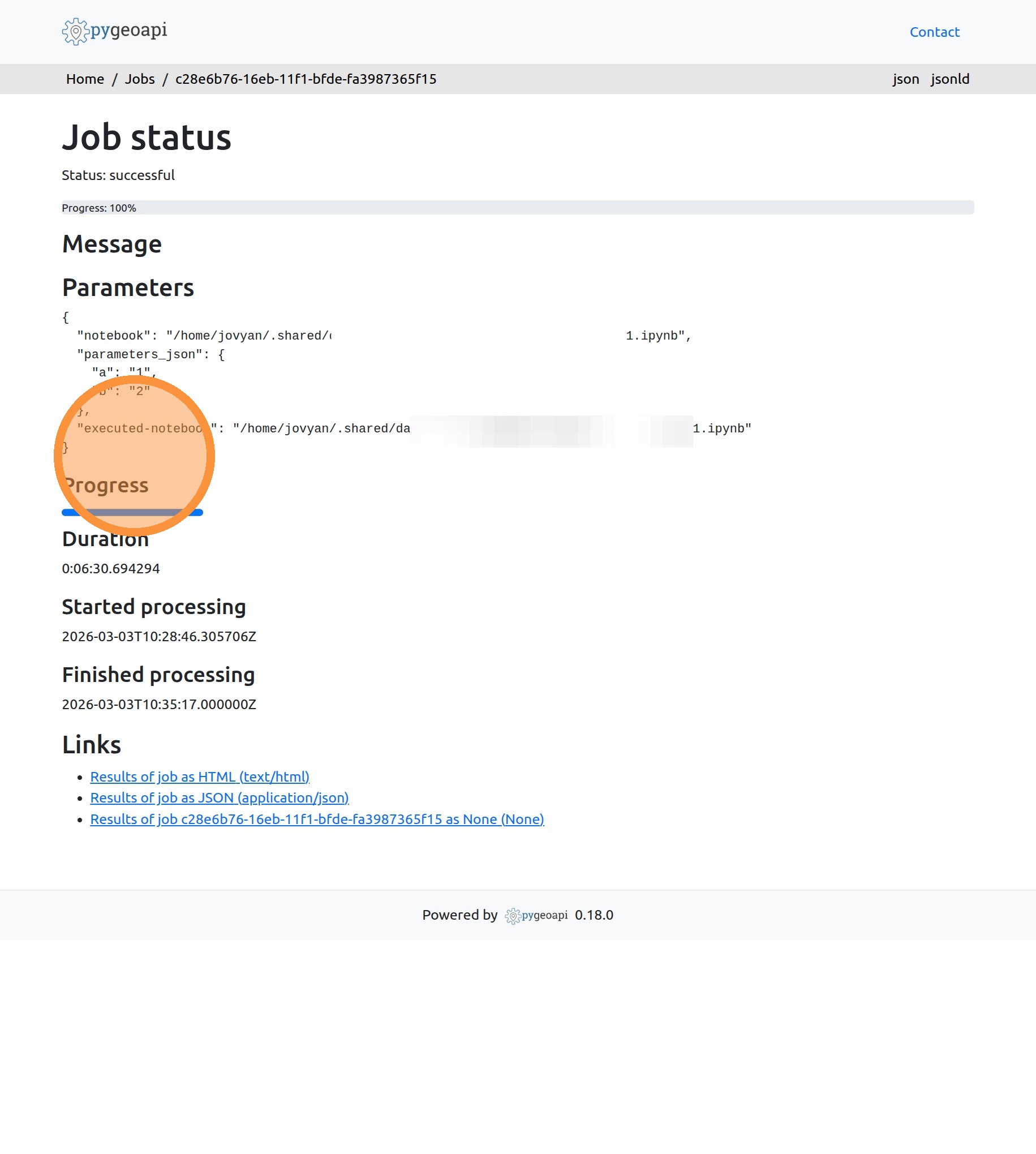
10. In the “Headless Notebook” application, you can track the progress of the running jobs and explore details like the parameters used and running time.
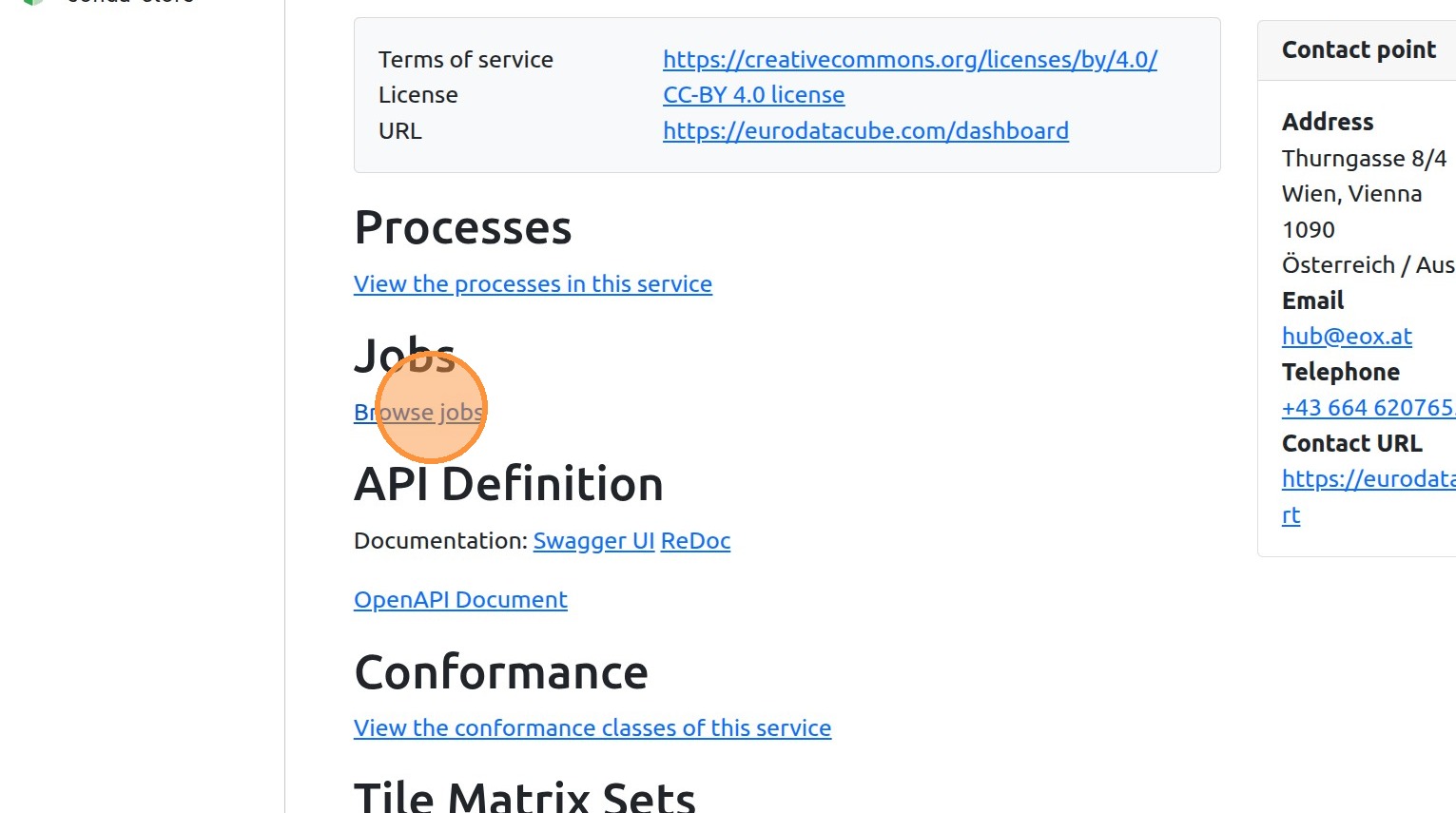
11. By clicking “Browse jobs,” you can browse all the headless jobs in the workspace.
12.
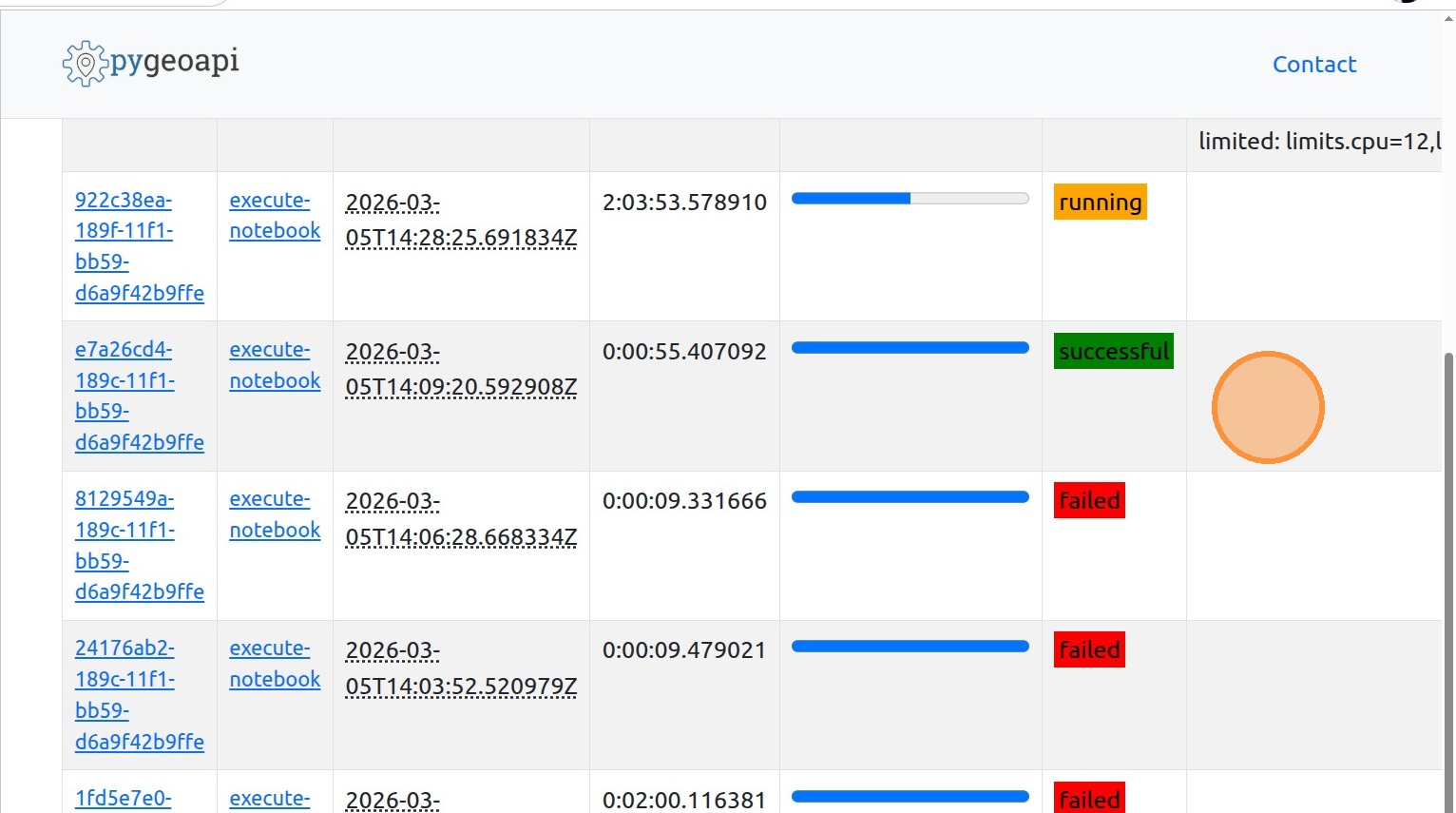
13. By clicking on the Job-ID, you can access the details.
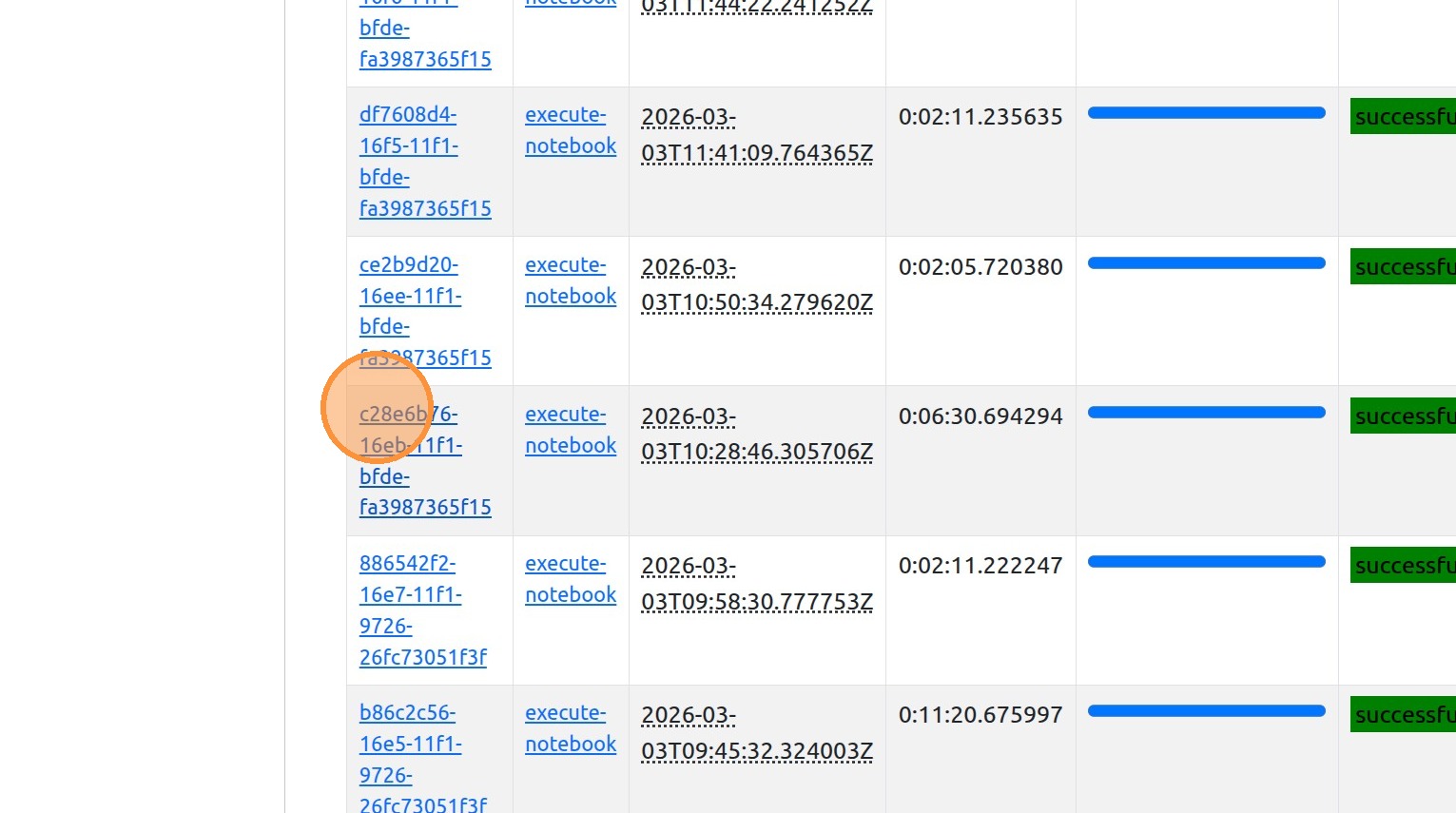
14. Opening the desired job details will show the passed parameters of the call, including the kernel and the exact values of the parameters. This helps with the reproducibility and traceability of the executed algorithms.