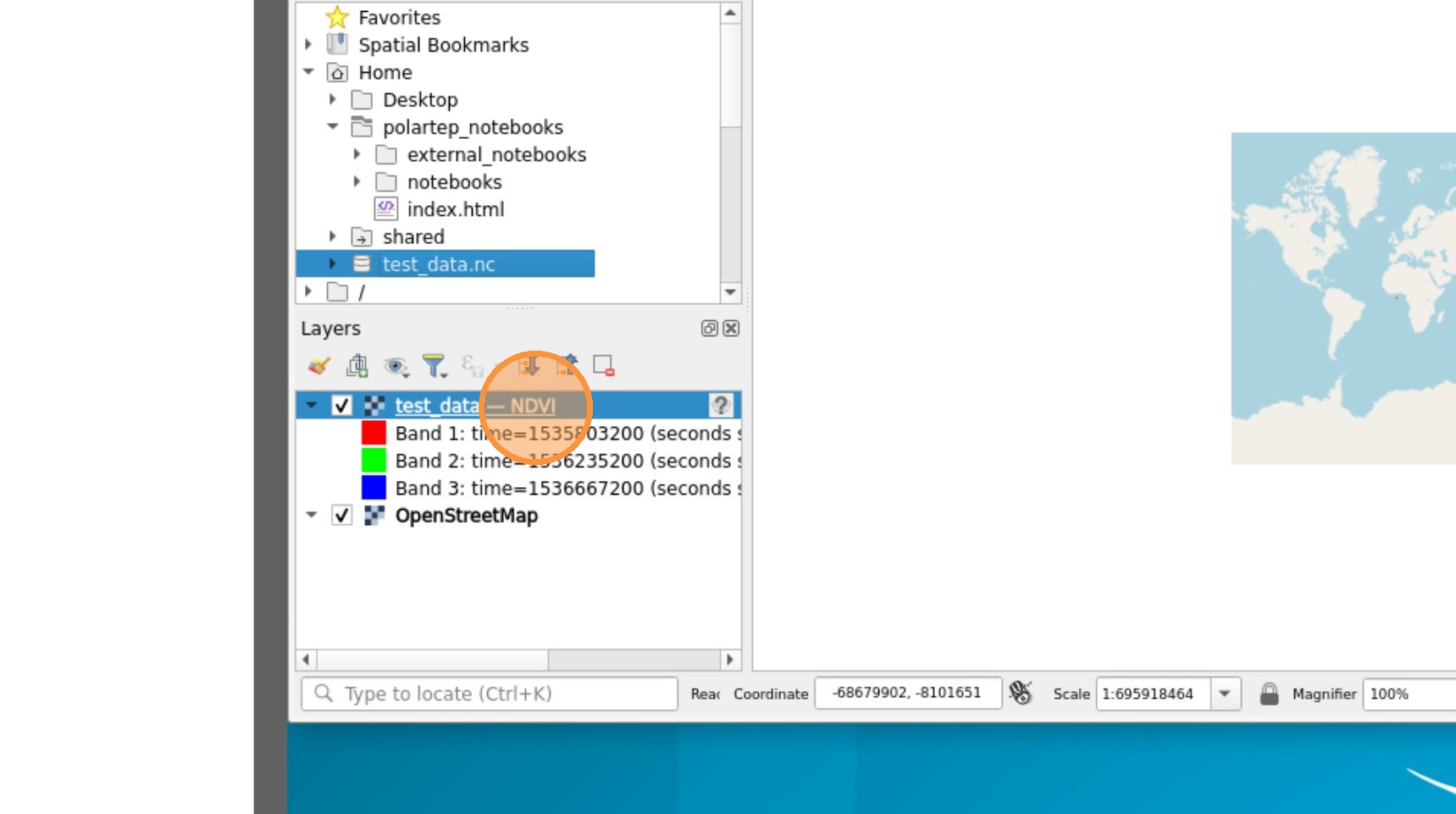
What you’ll accomplish: Launch QGIS in your browser and access data stored in your EOxHub Workspace.
Applications used: JupyterLab, QGIS
Estimated time: 5–10 minutes
Before you start: You need access to a Workspace where the QGIS environment is enabled.
This guide demonstrates the process of accessing a QGIS desktop environment directly within your browser using JupyterLab inside the EOxHub Workspace. It provides simple instructions to configure your server resources and successfully launch a specialized session for your data.
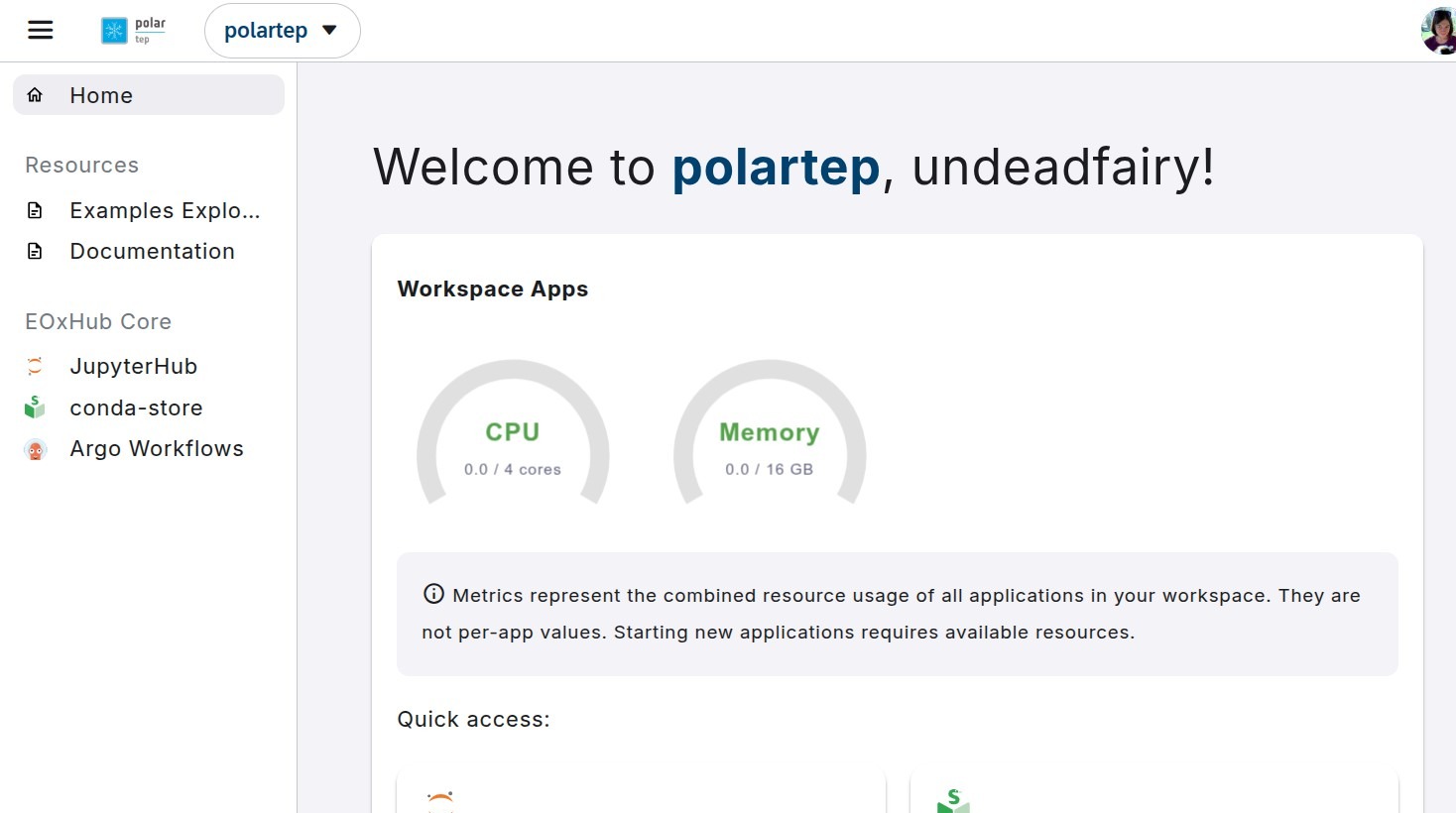
1. Navigate to your EOxHub Workspace with JupyterLab and QGIS enabled.
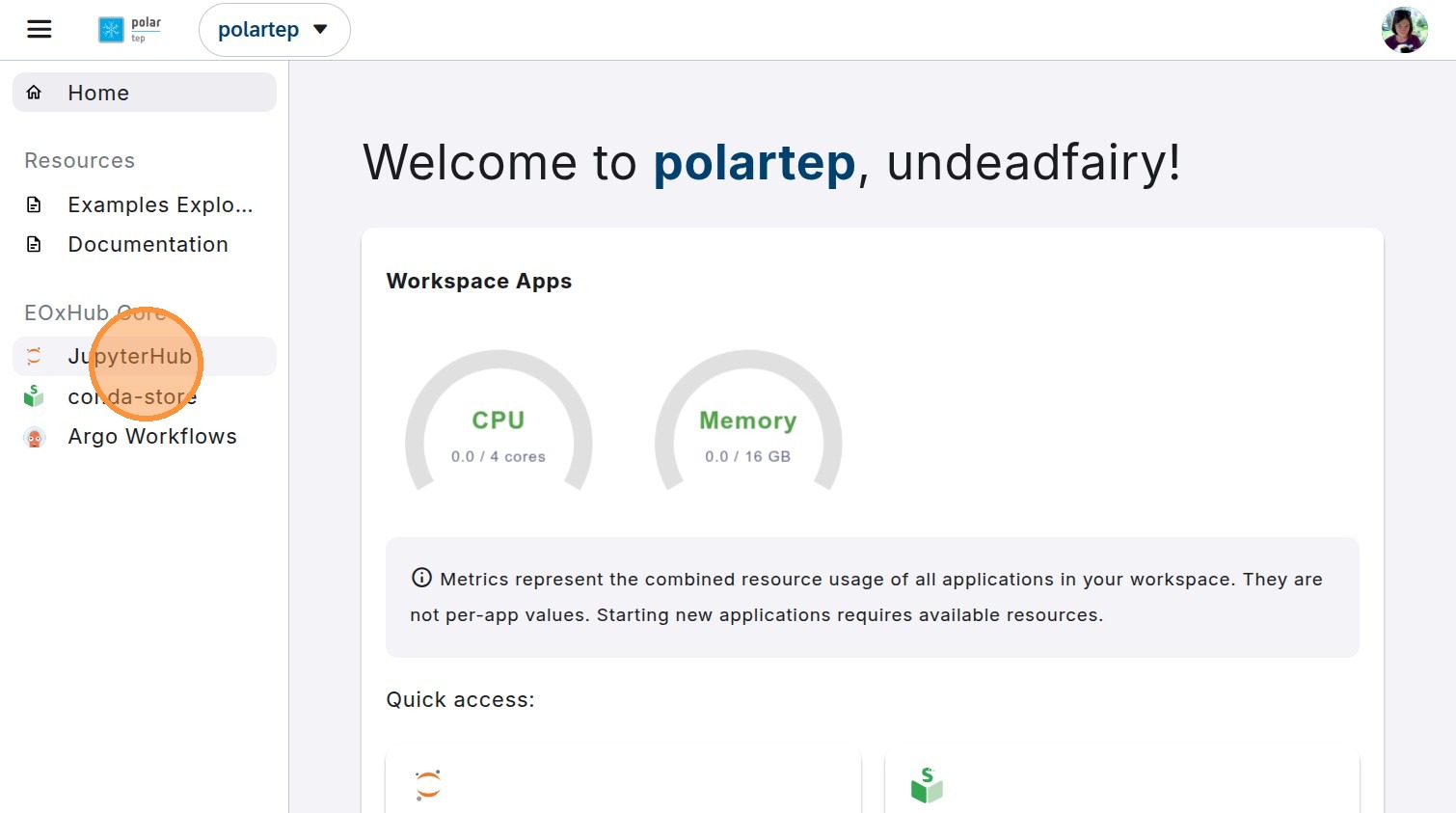
2. Open “JupyterLab” application.
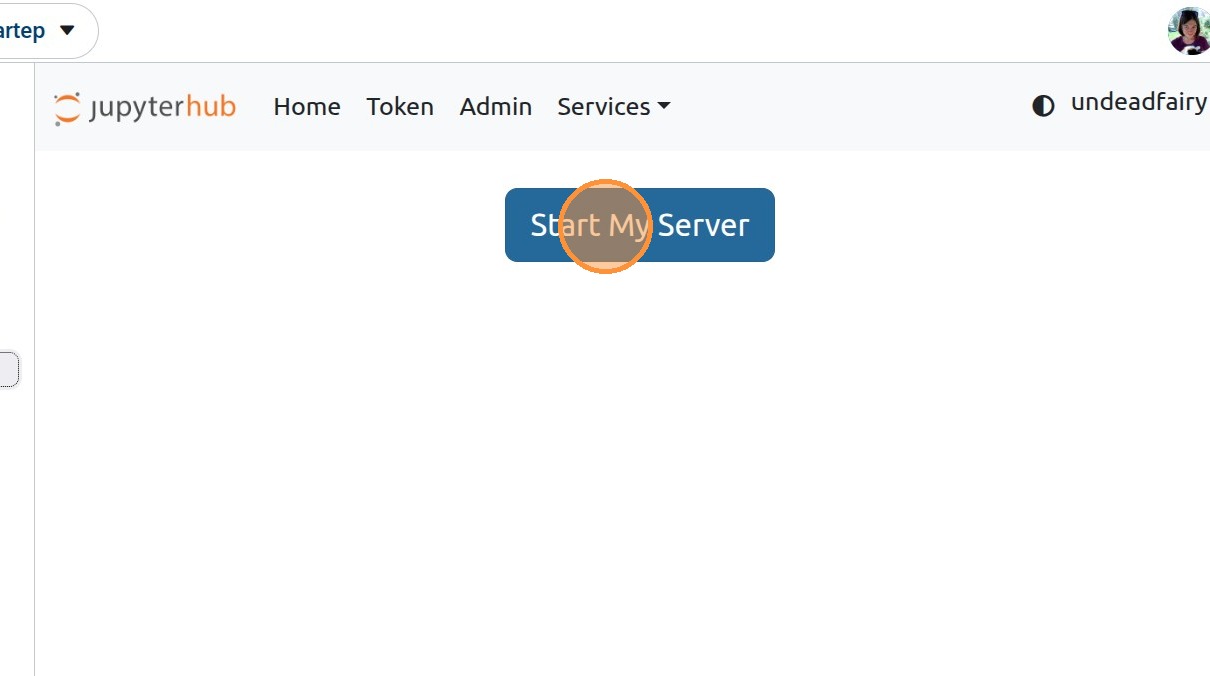
3. Click “Start My Server”.
4. From the dropdown, select QGIS in the workspace profile.
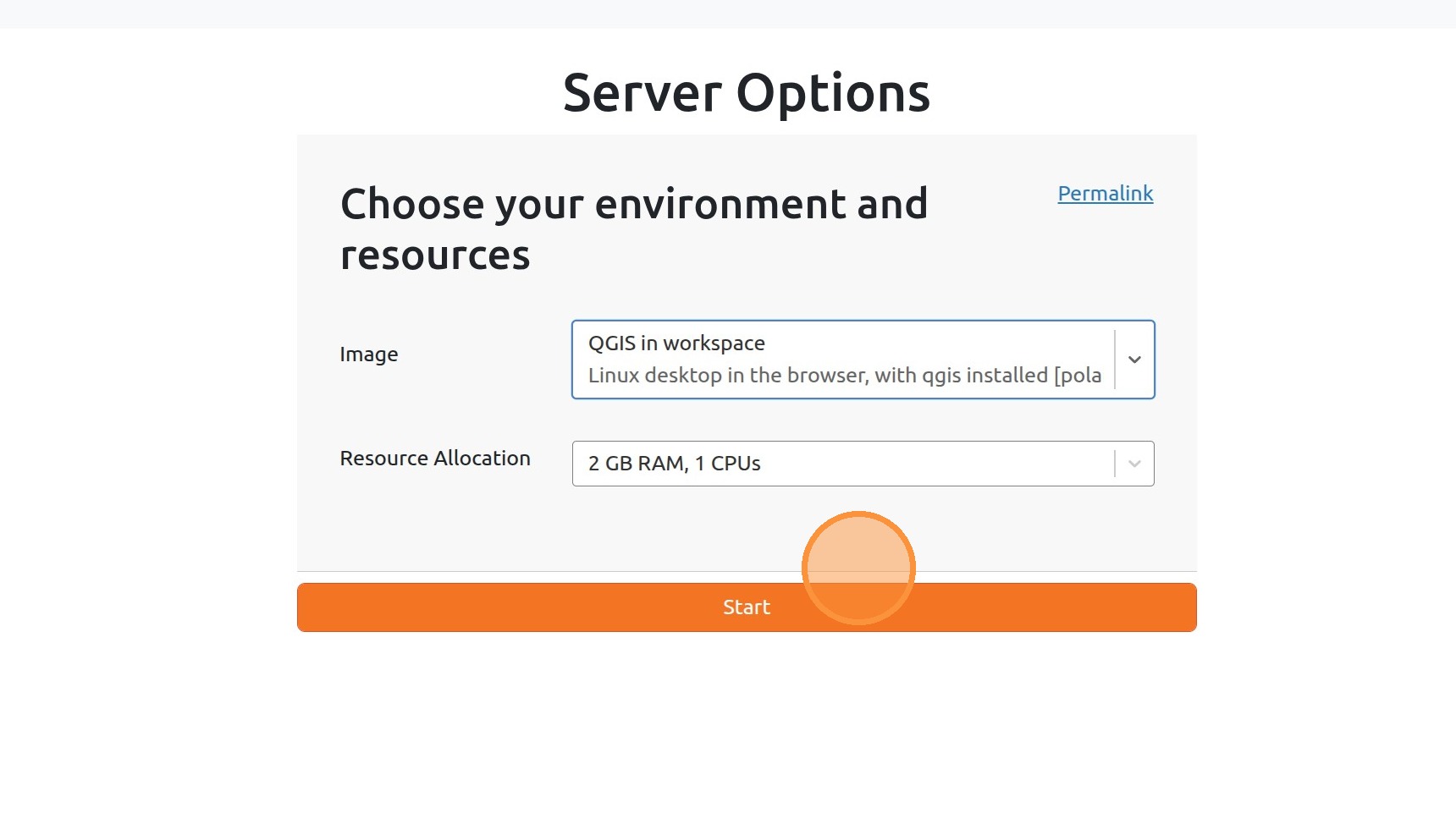
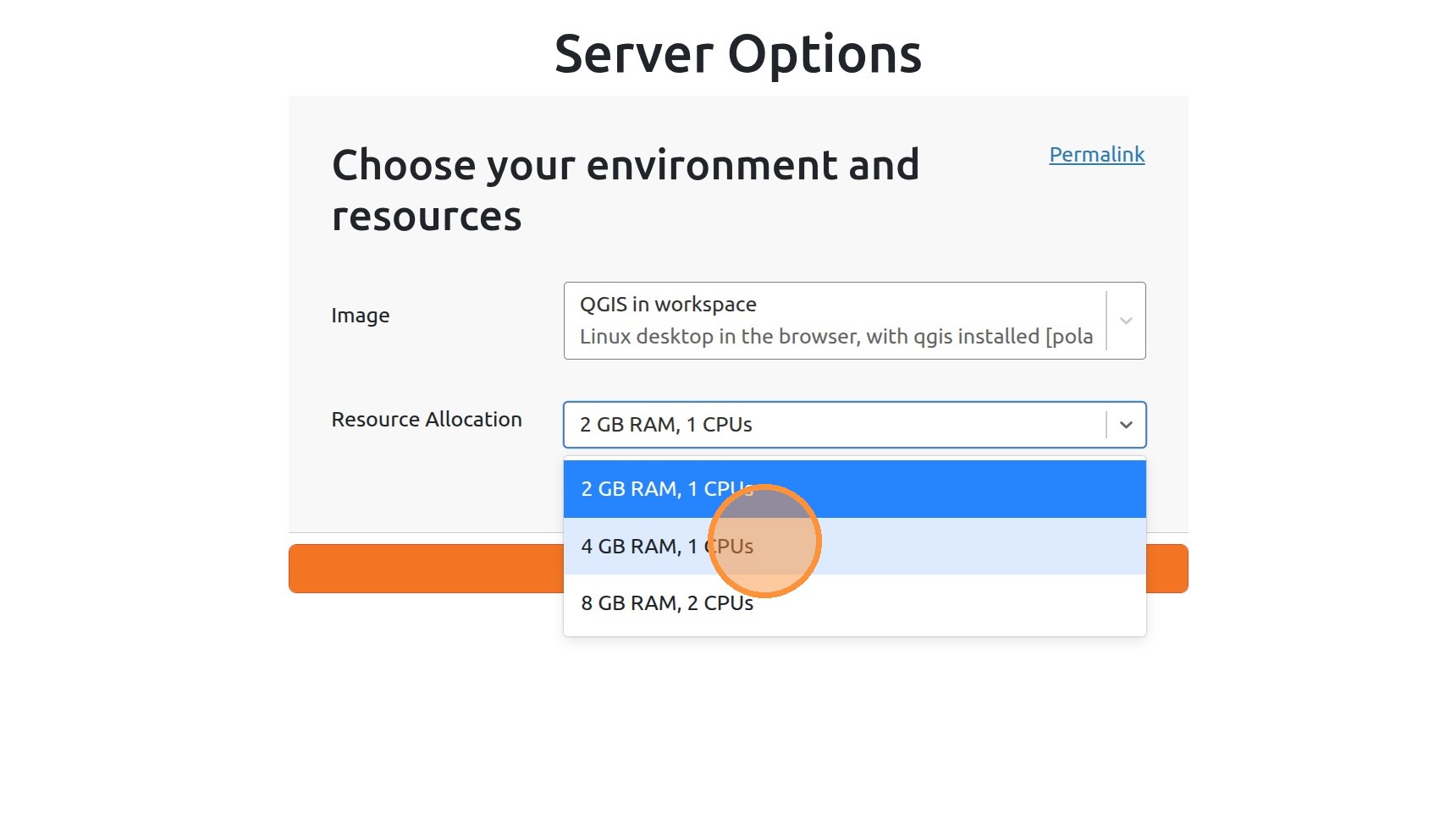
5. From the second dropdown, multiple resource options can be selected.
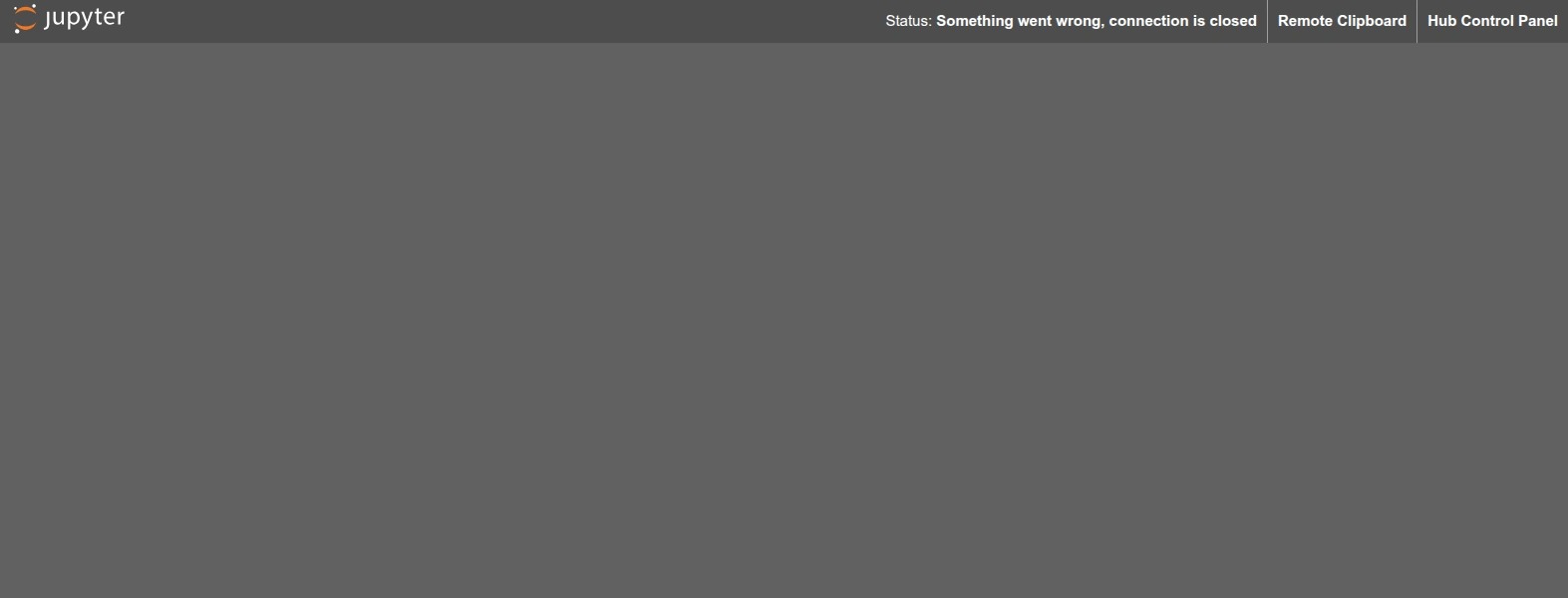
5.5. QGIS may not start on the first attempt. If that happens, click the Jupyter icon in the upper-left corner. This will refresh the session and fix the issue.
6. QGIS then opens inside the JupyterLab app window.
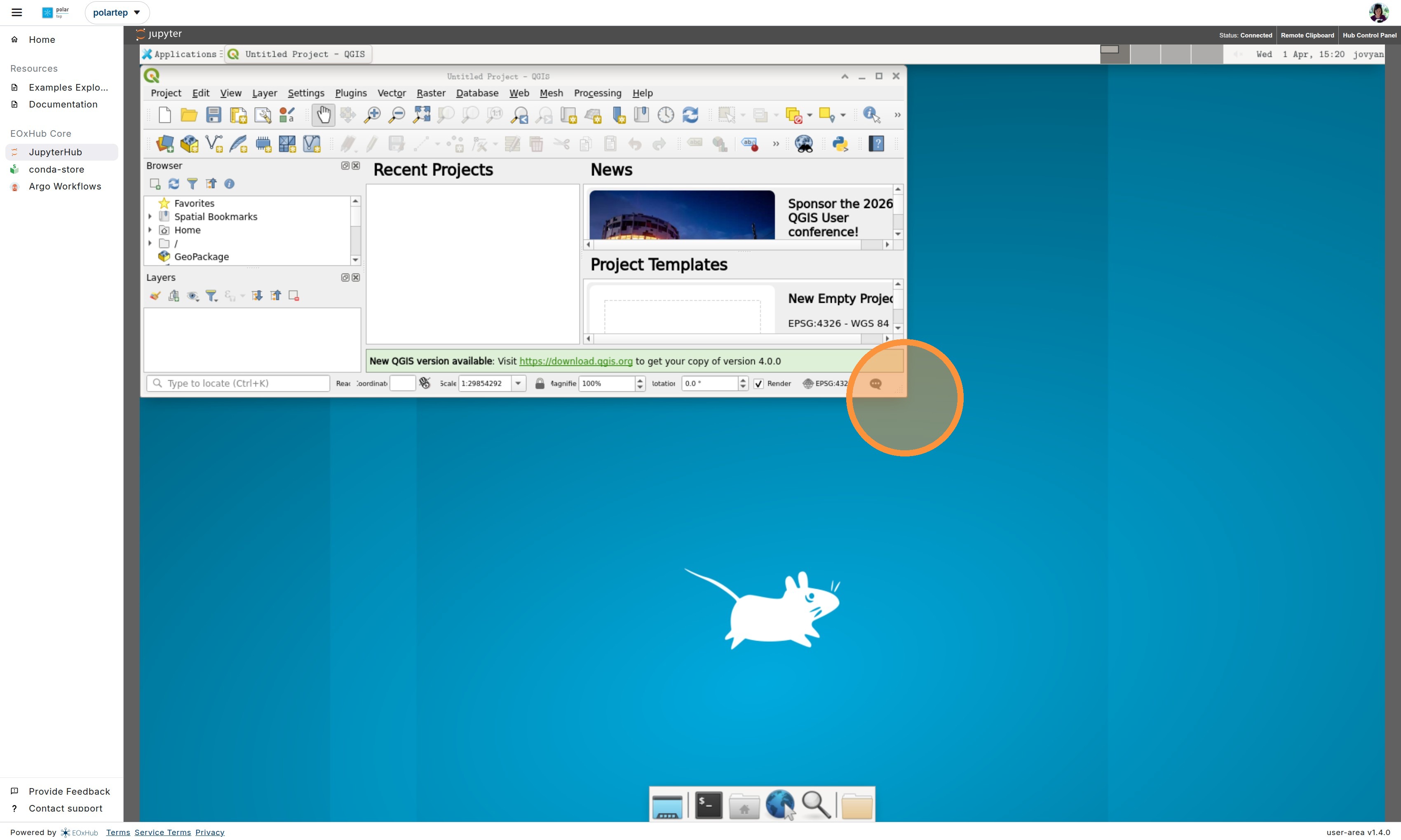
7. Standard QGIS features, such as adding base layers, are available. The full spectrum of functions is enabled.
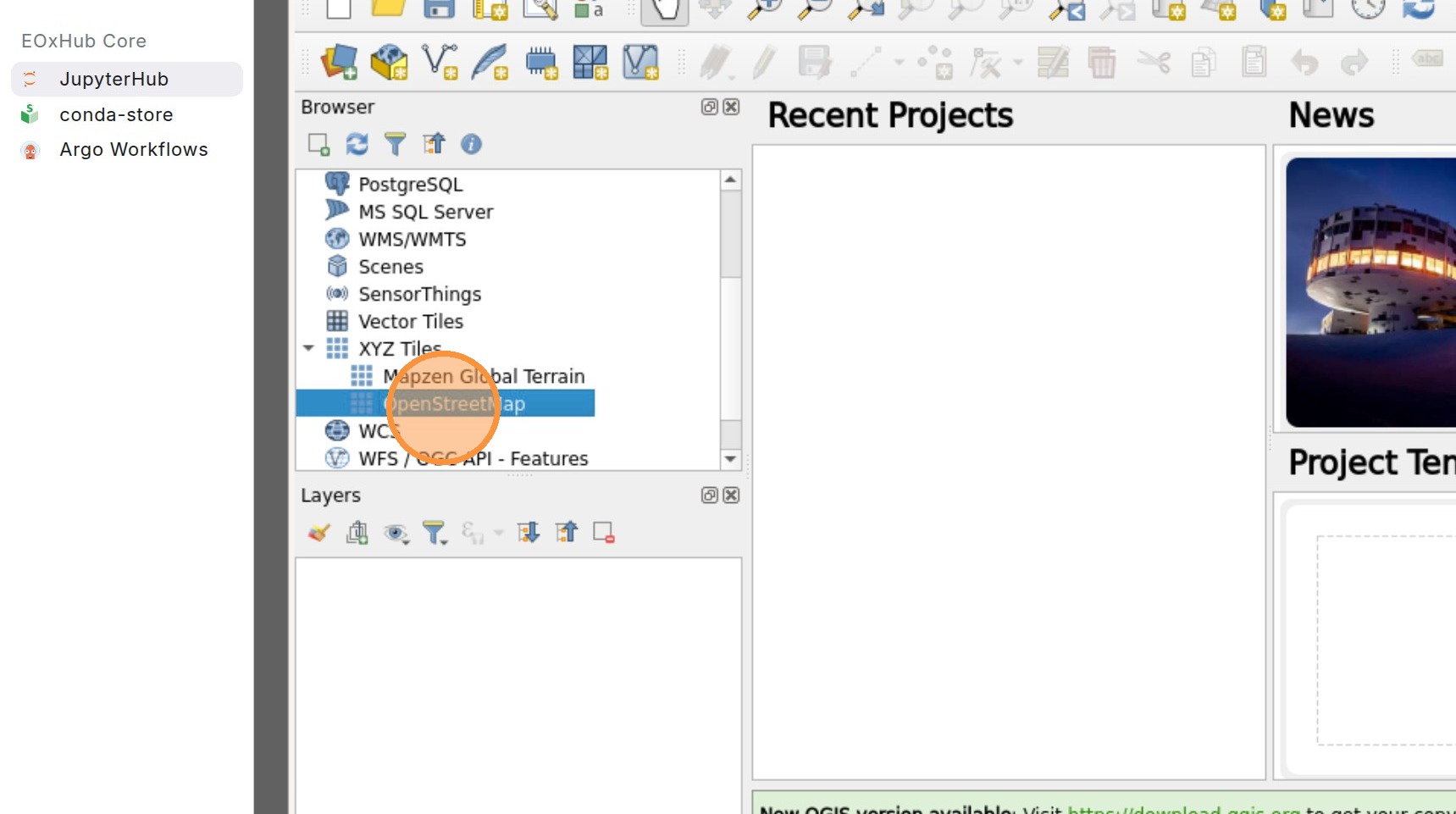
8. The Home folder, shared folder, and bucket are available in the same way they are in JupyterLab. Data can be easily viewed and interacted with without the need to download them and process locally.
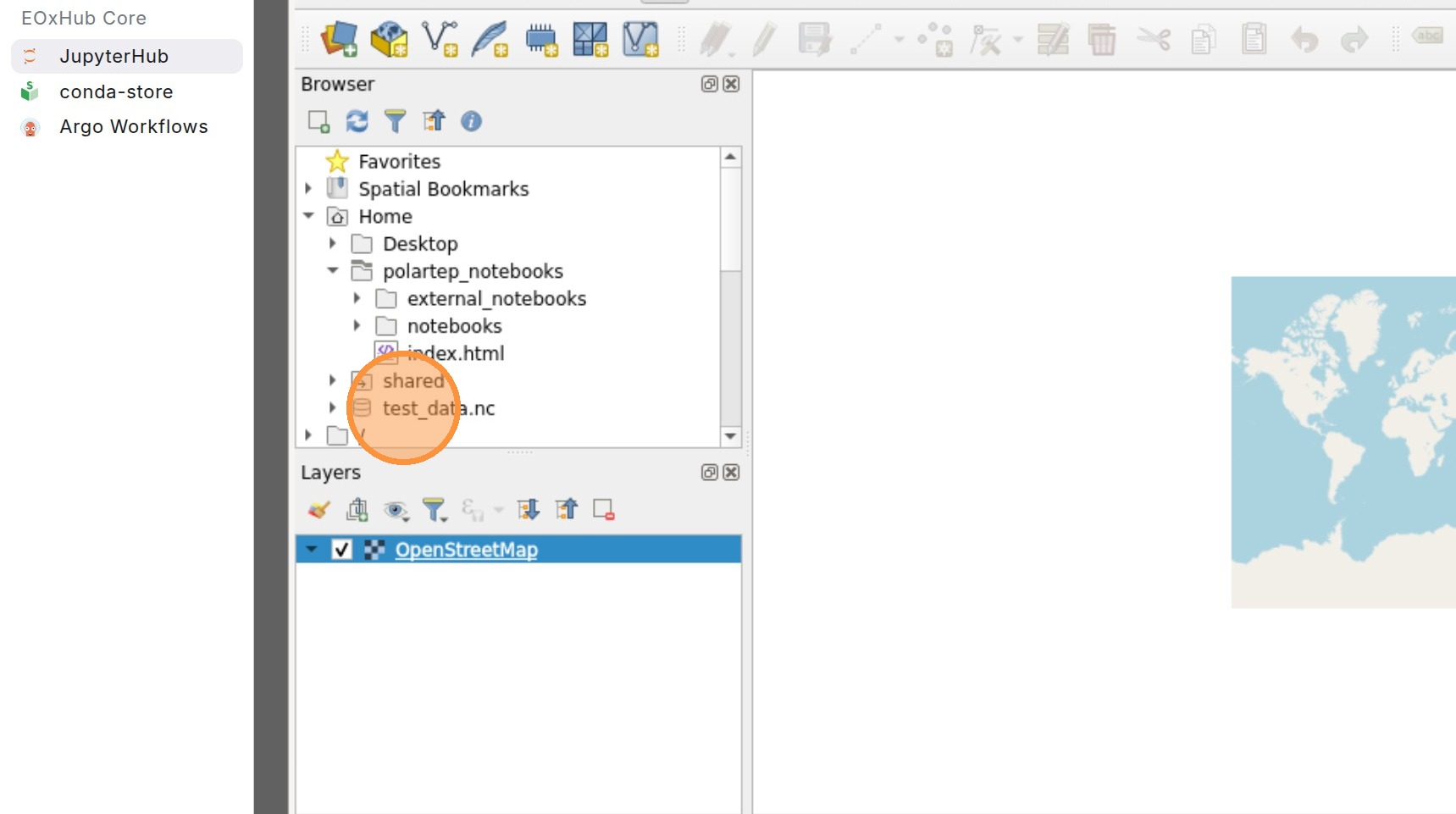
9. Simple drag-and-drop can be used to add your data into the “Layers” box.