Workspace secrets—such as API tokens, database credentials, or service keys—are securely managed using the EOxHub Credentials Manager. This tool ensures sensitive information is not hard-coded in notebooks, workflows, or shared files.
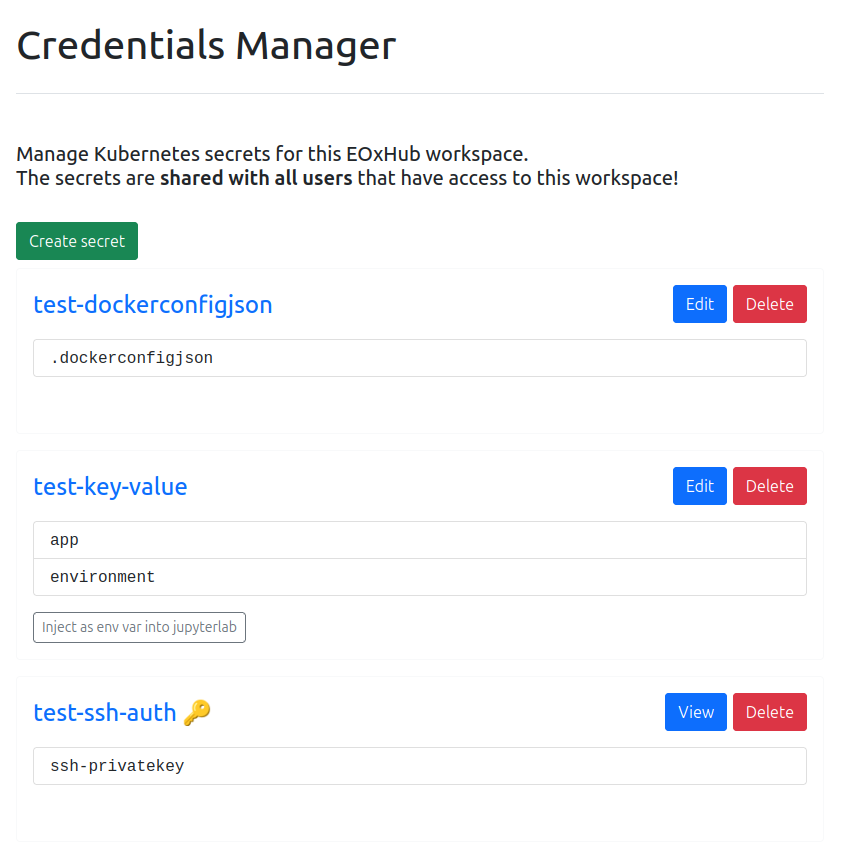
Figure 1:Credentials manager
Key Features
Centralized and secure storage of credentials for all workspace users
Collaborative access: All users within the workspace with correct roles can access and manage secrets
Reusability: Secrets can be reused across different applications (e.g., JupyterLab, Argo Workflows, data pipelines)
Example Use Cases
Accessing a Sentinel Hub instance or other APIs directly from JupyterLab
Supplying credentials to an Argo Workflow that fetches or publishes data to a cloud bucket
Configuring private dataset access within processing jobs
Credential types
Opaque (default)
(one or more) key-value pair(s)
dockerconfigjson
used to store authentication credentials for container image registries
referenced in pods as imagePullSecrets
ssh-auth
used to store a private authentication key
More detailed information about these secret types can be found in the official documentation: https://
kubernetes .io /docs /concepts /configuration /secret / #secret -types
Creation
| Type | Example |
|---|---|
| Opaque (key-value) You can add one or more key-value pairs. | 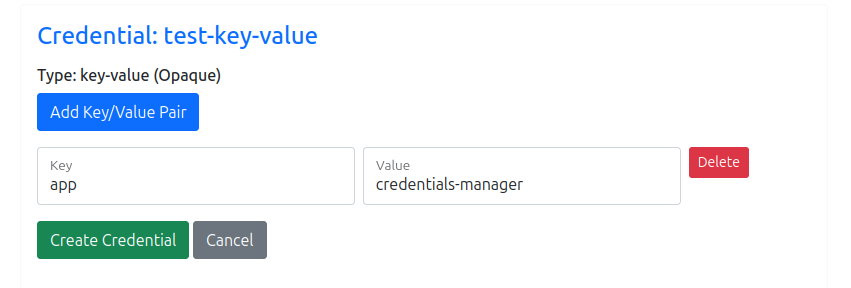 |
| dockerconfigjson The provided credentials are converted to valid JSON and stored in the secret. | 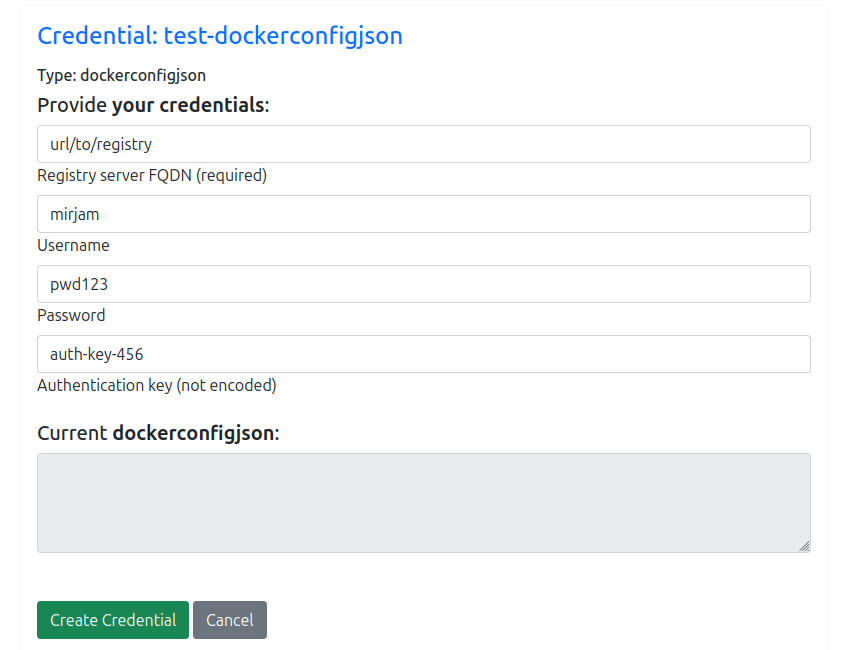 |
| ssh-auth You can either upload the key file or paste the key in the text area. | 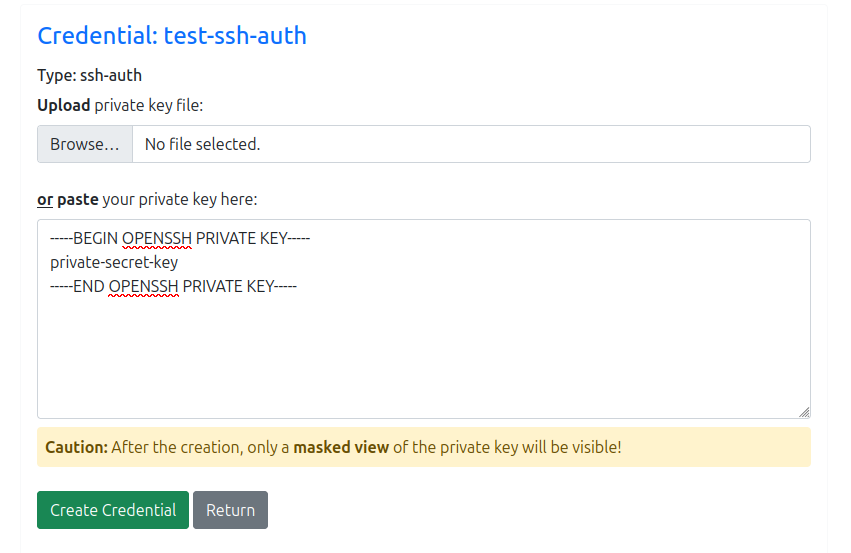 |
Modification / Deletion
| Type | Example |
|---|---|
| Opaque (key-value) add / remove key-value pairs change individual keys / values | 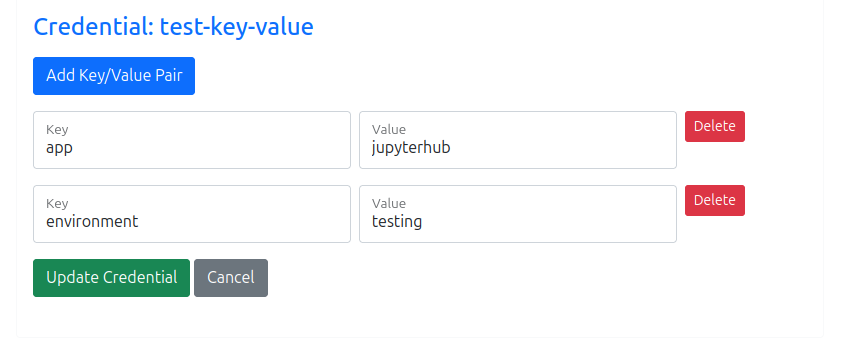 |
| dockerconfigjson The credentials can be changed; the current state of the stored JSON is shown in the (read-only) text area below. | 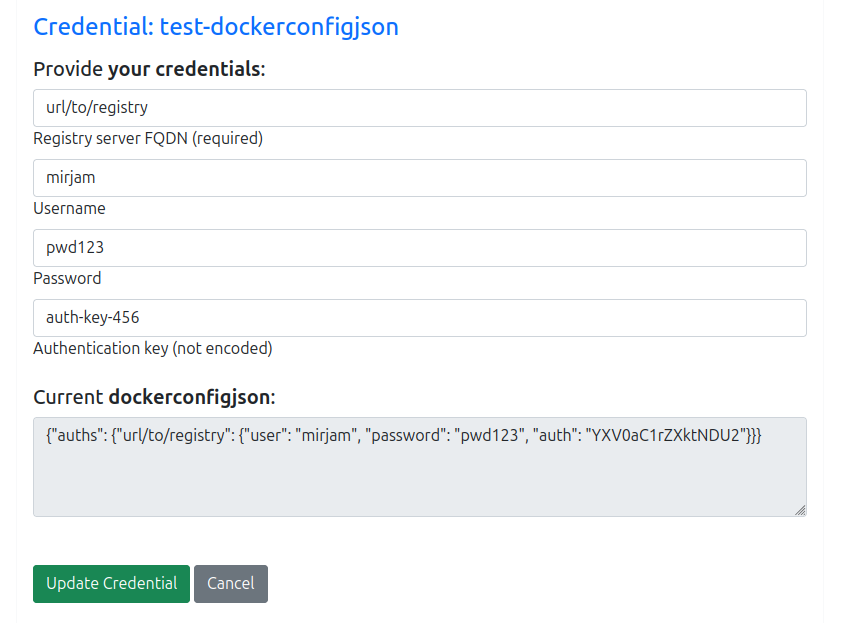 |
| ssh-auth The ssh-privatekey is masked and immutable once it’s stored. If you need to change the key, you need to delete the secret first and then recreate it. | 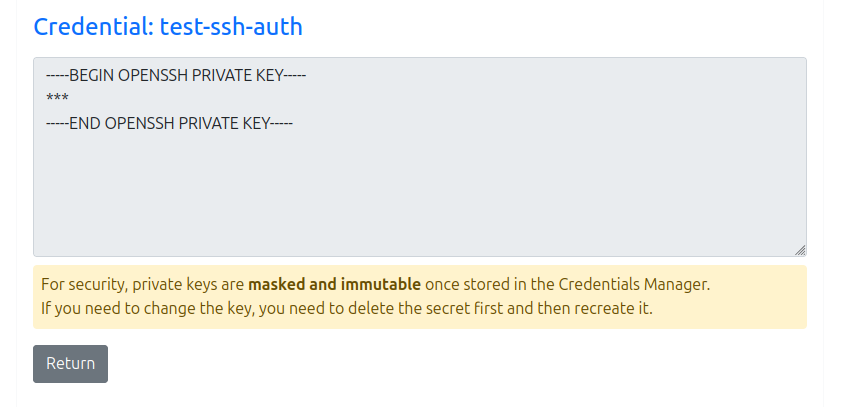 |
Special modes
Opaque (key-value) can be set to readonly or key-only (has to be done by an administrator). Read-only and key-only credentials can only be viewed; they cannot be edited or deleted.
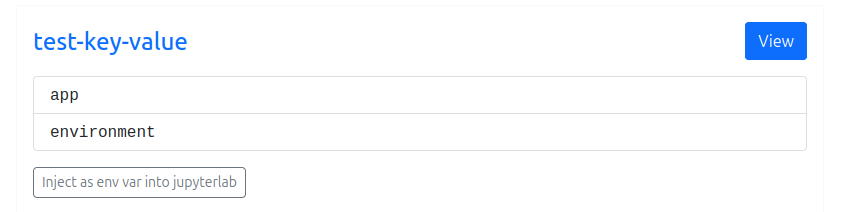
Figure 2:Credential can only be viewed, not edited or deleted.
| Mode | Example |
|---|---|
| readonly | 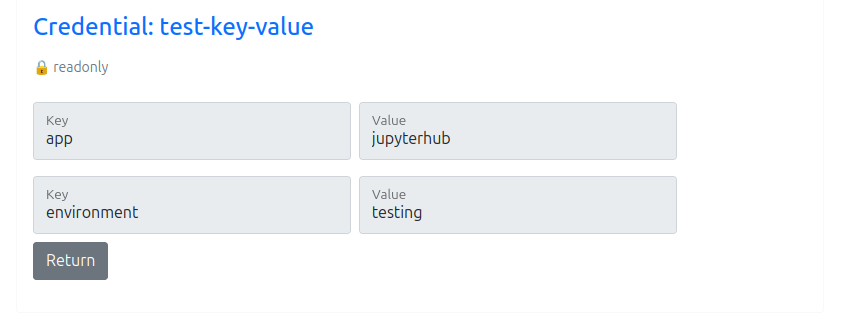 |
| key-only | 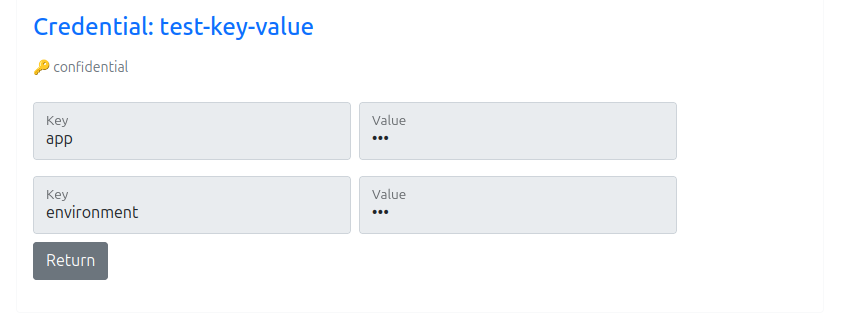 |
Inject as environment variables into JupyterLab
Opaque (key-value) secrets can be injected as environment variables in JupyterLab by enabling the Inject as env var into JupyterLab button below the credential.
If you enable or disable this button, you need to restart the JupyterLab session to see its effect.
| Inject as env into Jupyterlab | Example |
|---|---|
| disabled | 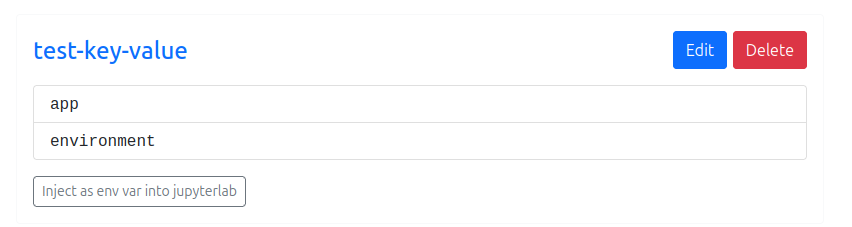 |
| enabled | 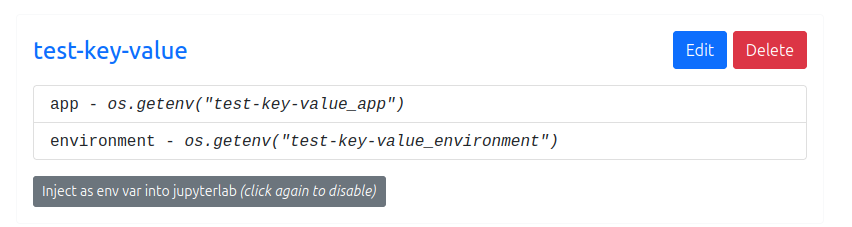 |
| How to access env it in Jupyterlab Notebook: | 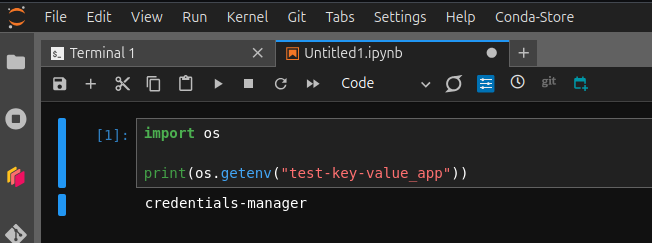 |